
Go to Configure >> User Management >> Users.
Select the LogPoint instance where you want to create the user. You cannot create users in multiple LogPoint instances at once.
Click Next.
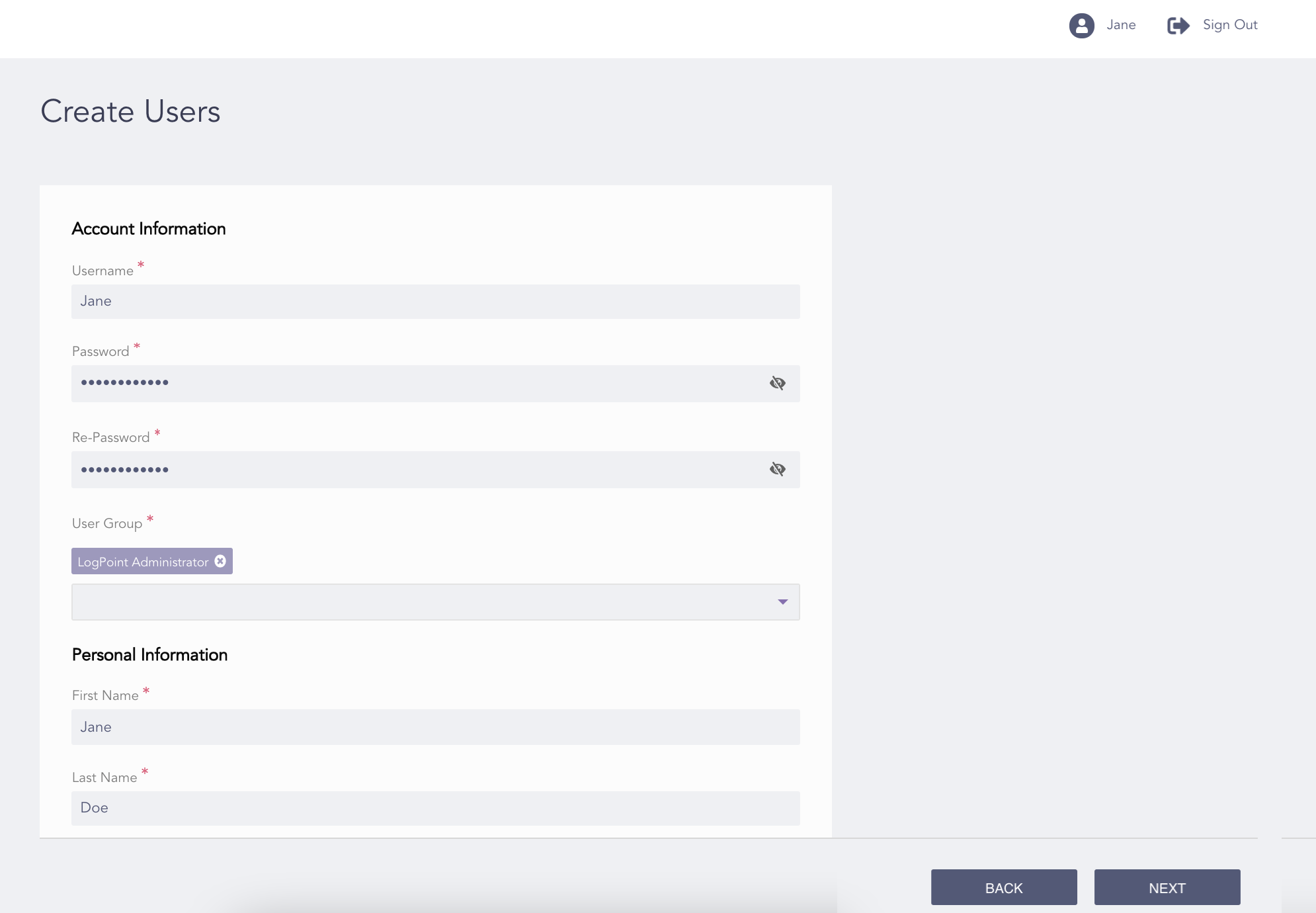
Creating a LogPoint User
Enter a Username.
Enter a Password and re-enter it.
Select a User Group. A user can be in multiple user groups.
Enter the user’s First Name, Last Name, Email, and Timezone.
Note
You can view the logs collected at different intervals according to your timezone. If you work in Denmark and want to view the logs collected in England, you can view those logs in the Danish timezone.
Click Next.
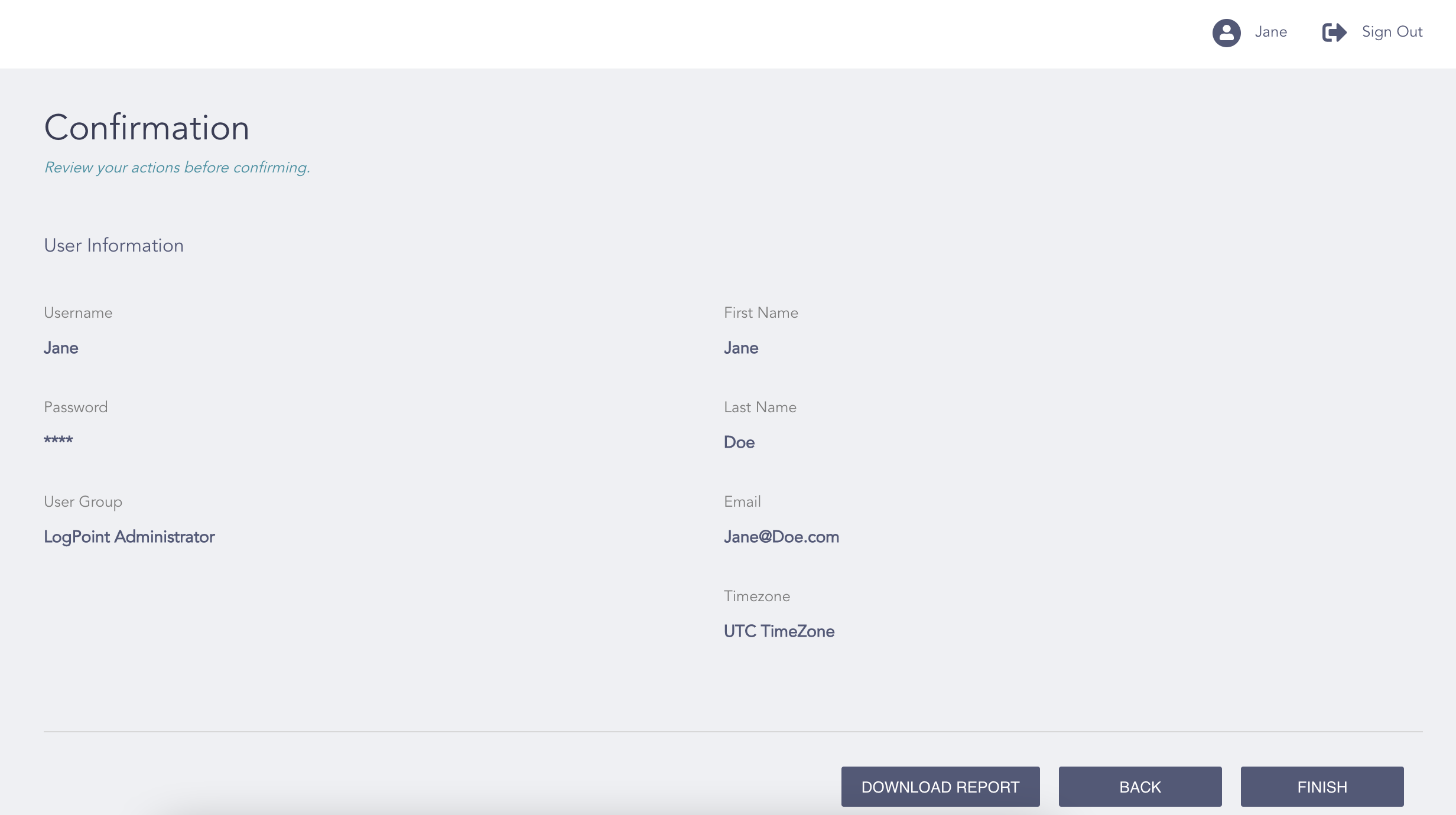
Confirming the Changes
Review your changes. You can go Back to make any changes if necessary.
Note
Click Download Report to save the summary of the task in PDF.
Click Finish and click Ok.
Note
You must deactivate a user before deleting them.
When deleting a shared dashboard’s or alert rule’s or report template’s or search template’s owner, you can transfer the ownership to another user or Force Delete the shared resources. You can transfer the ownership from the transfer ownership panel while deleting the user.
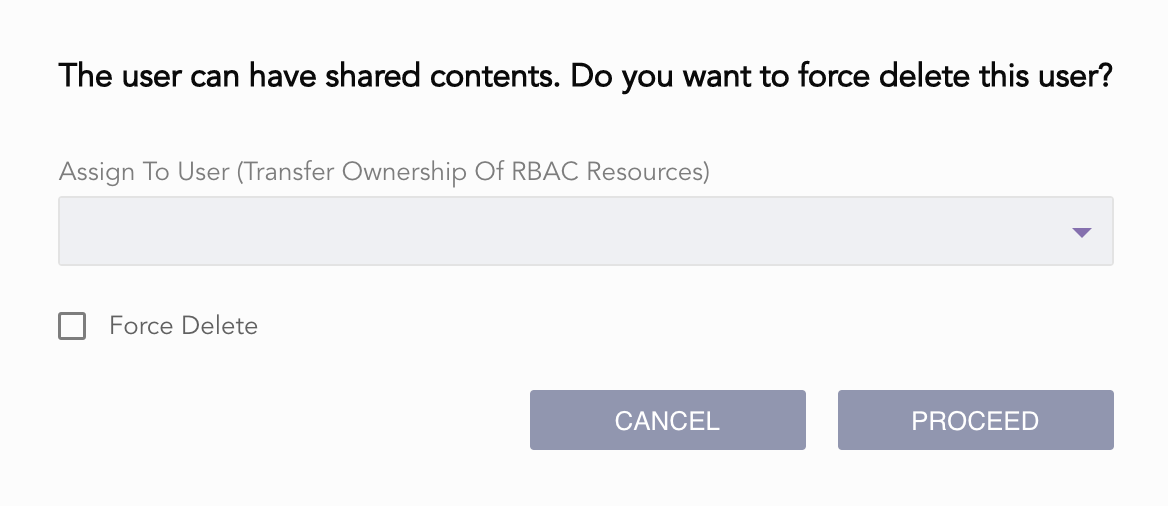
Transferring Shared Resources’ Ownership
You cannot deactivate or delete plugin users from Director Console.
If you add a new plugin user to a LogPoint instance, refresh the LogPoint Users API from Operations >> Refresh List APIs to view the user.
If a user is locked, refresh the LogPoint Users API from Operations >> Refresh List APIs to view the user’s updated status.
Refer to the Users section to learn more about LogPoint users.